
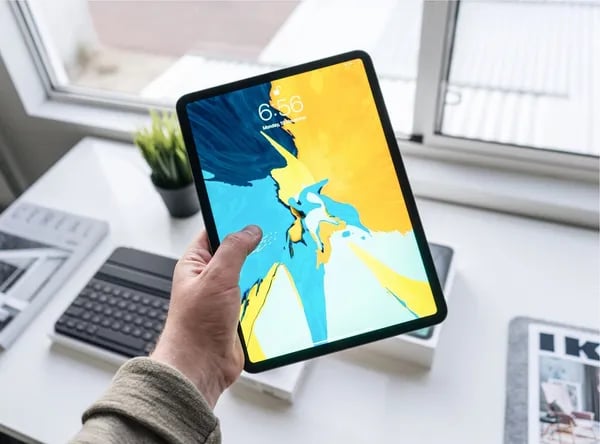



Tablets have become quiet essentials in modern life—used for learning, entertainment, reading, video calls, and light work across all age groups. Among the many options available, Amazon’s Fire tablets continue to stand out for their balance of affordability, simplicity, and reliable performance, making them a popular choice for families, students, and casual users worldwide.
This guide takes a clear, practical look at the current Fire tablet lineup and explains which models are best suited for different needs, from basic media consumption to child-friendly learning and everyday productivity. Rather than focusing on technical jargon, the aim is to highlight real-world usability, long-term value, and the features that truly matter in daily routines. By the end, you’ll have the insight you need to decide whether a Fire tablet is the right fit for your budget, your household, and how you prefer to use technology.
Overview: What I Mean by "Best Fire Tablet"
When I say Best Fire tablet, I’m not talking about the “most powerful tablet on earth.” I mean the best price-to-value Amazon Fire tablet for real life: streaming, reading, light work, kids’ learning, and travel—without paying premium prices. For many people, the smartest buy is the device that does 80–90% of what you need at a fraction of the cost.
That’s why I treat the Amazon Fire tablet lineup as family-friendly and budget-first. Review roundups often position Fire tablets as the best budget tablet and the best tablet for kids, and that matches what I see in everyday use. As Alex Carter, Consumer Electronics Analyst, puts it:
"For many families, the Amazon Fire tablet hits the sweet spot between affordability and everyday feature set."
The 2026 Fire Tablet Lineup I’m Referring To
In this guide, I’ll mainly reference these current models:
Fire Max 11 tablet (the “biggest and most laptop-like” option)
Fire HD 10 Plus (a strong mid-range, larger-screen pick)
Fire HD 8 Plus (compact and usually the best budget Fire tablet)
Kids Edition (built for drops, learning, and parental controls)
How Fire OS and the Amazon Ecosystem Shape the Experience
Fire tablets run Fire OS, which is designed around the Amazon ecosystem—Kindle books, Prime Video, Audible, and Alexa. That’s a plus if you already use Amazon services. And if you want more flexibility, many owners explore side-loading (like adding Google Play) to expand app choices. For example, you might install extra productivity or classroom apps that aren’t in the default store.
Real-World Example: Replacing a Laptop on a Flight
On a long flight, I’ve swapped my laptop for a Fire tablet: downloaded movies, read a Kindle book, answered emails with a small keyboard, and kept everything light in my bag. My niece also uses a Kids Edition for offline games and reading—less worry, because it’s built to survive travel.
Finally, where do Fire tablets sit in the market? They’re often less than half the price of comparable iPad models, and accessories (cases, chargers, keyboards) usually cost less too—making the total setup much easier on a family budget.
Key Features & Benefits I Look For
Fire OS features: simple, familiar, and Amazon-friendly
When I test a Fire tablet, I start with Fire OS features because they shape the whole experience. Fire OS is built around Amazon services, so it feels “ready to use” for everyday life: Prime Video for streaming, Kindle for reading, and Alexa for voice control. For many people, that tight integration is the main benefit—like buying a TV that already has your favorite channels pinned to the front page. If you need more apps, Fire OS can be extended with Google Play via side-loading, but I treat that as optional, not required.
Display sizes (8–11 inches): what it’s like day to day
I look at screen size based on real tasks. An 8-inch tablet is easy to hold for ebooks, commuting, or kids’ videos. A 10–11 inch screen is better for split-screen browsing, recipes, and longer movies. Fire tablets are strongest for media consumption and reading, not pro-level creative work.
Fire tablet battery life: travel and family reality checks
Fire tablet battery life matters most when you’re away from outlets—road trips, flights, or a full day of schoolwork. I look for a tablet that can handle streaming, reading, and light browsing without constant charging, because a tablet with weak battery is like a water bottle with a slow leak.
Fire tablet performance: smooth basics over heavy multitasking
My baseline for Fire tablet performance is simple: apps should open quickly, video should play without stutter, and casual games should run fine. I don’t expect laptop-level multitasking; these tablets are built for daily comfort, not heavy workloads.
Parental controls and Kids perks
For families, I prioritize strong parental controls, profiles, and curated content. Kids Editions can also include extra peace of mind with an extended warranty.
Maria Lopez, Family Tech Reviewer: "Parents consistently praise the Fire tablet for its curated kids content and strong parental controls."
Wireless charging dock: the “always-ready” upgrade
I specifically watch for wireless charging support on Fire HD 10 Plus and Fire HD 8 Plus. Paired with a wireless charging dock, the tablet can act as a smart display when docked—great as a kitchen recipe screen, a bedside clock, or a living-room photo frame (check latest price here / see customer reviews here).
Pros and Cons (Short, Honest List)
When I weigh Fire tablet pros and cons, I try to think like a real owner: reading in bed, streaming on the couch, handing it to a kid in the back seat, and tossing it in a bag for travel. Fire tablets are known as affordable Fire tablets—often costing less than 50% of a comparable iPad—so the big question is whether the trade-offs match your needs.
Daniel Park, Tech Journalist: "If your needs are streaming and reading, a Fire tablet is hard to beat on value—but don’t expect pro‑level performance."
Pros
Budget-friendly value: If you mainly want Netflix, Prime Video, Kindle books, and light browsing, the price-to-usefulness ratio is excellent (and it leaves room for a case—check latest price here).
Great for families and kids: The Kids editions and profiles offer curated content and strong parental controls. I also like the “worry less” factor—many Kids bundles include an extended, no-stress warranty that’s surprisingly generous for accidents.
Accessories are cheaper than iPad gear: I noticed cases, screen protectors, docks, and replacement chargers tend to cost less and are easy to find online (see customer reviews here).
Cons
Lower raw power than iPads: Fire tablet performance is fine for everyday tasks, but it’s not in the same league as iPads with A-series or M-series chips. Heavy gaming, large photo edits, and serious multitasking can feel slower.
Amazon-centric software (and ads): Reviews often criticize the extra Amazon-focused apps and occasional lock-screen ads on some models. I find it manageable, but it can feel cluttered if you want a “clean” tablet.
App selection limits: Some popular apps aren’t available in the Amazon Appstore. You can add Google Play by side-loading, but that’s extra steps and not as simple as a standard Android tablet.
Best Use Cases — Who Should Buy Which Fire Tablet
I like to think of Fire tablets like a set of everyday tools: each one does the basics well, but the “best” choice depends on where you’ll use it most—on the couch, in a backpack, or in a kid’s hands.
Parents: Fire tablet for kids (Kids Edition)
If you want fewer arguments and more control, the Fire tablet for kids is the Kids Edition. It’s built for drops, includes strong parental controls, and the extended warranty helps when accidents happen. I’ve seen it work best for bedtime stories, learning apps, and safe YouTube-style viewing with limits.
Hannah Reed, Consumer Tech Editor: "For most families, the Kids Edition provides peace of mind and content control that’s hard to match at this price."
For most parents, this is the easiest “buy it and relax” option—check latest price here.
Students: Fire HD 10 Plus or Fire Max 11 tablet
For reading textbooks, highlighting PDFs, and simple note-taking, I’d pick the Fire HD 10 Plus for value or the Fire Max 11 tablet if you want a bigger, sharper screen for long study sessions. The trade-off is simple: bigger screens are nicer for split reading, but less comfy to hold one-handed. See customer reviews here.
Travelers: Fire HD 8 / Fire HD 8 Plus
When I used a Fire HD 8 Plus on a week-long trip, it lasted through flights and hotel streaming without me stressing about charging. The smaller size is easier for light packing, and battery life is usually the hero feature here. Check latest price here.
Media lovers: Fire Max 11 tablet or Fire HD 10 Plus
If your main goal is streaming, Kindle reading, and Amazon ecosystem convenience (Prime Video, Kindle books, Audible), go bigger. The Fire Max 11 is great for everyday media consumption, while the HD 10 Plus is a strong value pick.
Casual gamers and budget buyers
For puzzle games, Roblox-style play, and casual titles, any modern Fire tablet works fine. If you want heavy 3D gaming, pro creative apps, or serious multitasking, I’d look beyond Fire tablets to an iPad or a high-end Android tablet. For everyone else, a budget Fire tablet is perfect for reading, streaming, and daily tasks—just balance portability vs screen size, and storage vs cloud purchases.
How to Choose the Right One: Quick Decision Checklist
Oliver Grant, Tech Reviewer: "Choosing the right Fire tablet is about matching screen size and battery to how you'll use it day-to-day."
I pick a Fire tablet the same way I pick a backpack: the “best” one is the one that fits my daily load. Use this quick checklist to match the Fire HD 8 Plus, Fire HD 10 Plus, Fire Max 11 tablet, or a Fire tablet Kids Edition to your real life.
1) Screen size: pocket-friendly vs couch-friendly
8-inch (Fire HD 8 Plus): best for commuting, reading, and one-hand use.
10–11 inch (Fire HD 10 Plus / Fire Max 11 tablet): better for movies, split-screen, recipes on the counter, and light multitasking.
2) Performance: smoother everyday use
For the snappiest feel, I lean toward the Fire Max 11 tablet.
For strong value and smooth streaming, the Fire HD 10 Plus is a safe middle ground.
Before buying, I scan reviews for a quick tablet speed test note (app launch times, scrolling, and simple benchmarks).
3) Storage & RAM: downloads change everything
If you download lots of Netflix episodes, games, or offline music, I recommend higher storage. It’s like choosing a bigger closet—less daily cleanup. (You can also add a microSD on many models.)
4) Kids vs adult use
Kids Edition: easier parental controls and often a stronger Amazon tablet warranty setup for accidents.
Regular models: usually cheaper and lighter if you don’t need kid-focused features.
5) Accessories: plan the “setup,” not just the tablet
Accessories for Amazon Fire tablets are generally cheaper than equivalent iPad accessories. If you want a smart-display vibe, check a wireless charging dock. Note: Fire HD 10 Plus and Fire HD 8 Plus support wireless charging—confirm dock compatibility before you buy (check latest price here / see customer reviews here).
6) Warranty, returns, and app needs
I always confirm the Amazon tablet warranty and return policy. And if a needed app is missing, remember you can side-load Google Play (at your own risk) using a guide like: Settings > Security > Apps from Unknown Sources.

Maintenance & Care Tips I Use and Recommend
Good Fire tablet maintenance is like basic car care: small habits prevent big problems. I’ve found Fire tablets stay fast and reliable when I treat updates, storage, and protection as a simple routine.
Keep Fire OS Updated (My First Check)
Amazon pushes regular updates, and they often fix bugs and improve security. I check this monthly: Settings > Device Options > System Updates. If a tablet feels “slow,” an update plus a restart is my first troubleshooting step.
Manage Storage Before It Gets Messy
When storage is nearly full, downloads fail and apps crash. If your model supports it, I add a microSD card for offline movies and kids’ content. Otherwise, I offload media to cloud services (including Amazon Photos). Personally, I back up my downloads weekly and delete what I’ve already watched.
Battery Care: Simple Rules That Help
Avoid extreme heat (hot cars are the fastest way to age a battery).
Don’t leave it plugged in at 100% for long stretches; I unplug once it’s topped up.
Use reputable chargers. International readers: confirm your charger supports local voltage (many are 100–240V, but always check the label).
Fire Tablet Accessories I Actually Use
Fire tablet accessories are usually cheaper than iPad equivalents, so I don’t skip protection. For Kids Edition, I recommend a rugged, kid-friendly case. For adults, a slim folio case is great for commuting and reading. After mentioning a case in my buying notes, I typically add “Check latest price here” or “See customer reviews here.”
Screen Cleaning + Screen Protector
I wipe the screen with a microfiber cloth (no harsh cleaners). A thin tempered-glass protector is a low-cost way to prevent scratches and small cracks.
Backups, Parental Controls, and Warranty Checks
I sync photos/documents to cloud accounts so a lost tablet isn’t a disaster. If you use parental controls, review profiles and content filters regularly as kids grow. Finally, check your Amazon tablet warranty and repair options—especially Kids Edition extended coverage for accidental damage.
Emily Ross, Repair and Maintenance Specialist: “Basic maintenance—updates, backups, and a decent case—extends a tablet's usable life significantly.”
Head-to-Head: Fire Tablet vs iPad (Simple, Clear Comparison)
When I compare Fire tablet vs iPad, I think of two different goals: best value for simple daily use versus best power for demanding work. iPads often top “best tablet” lists, while Fire tablets usually lead “best budget tablet” lists—and that difference shows up fast in real life.
Quick Comparison Table (Fire Max 11 vs iPad 11)
Category | Fire Tablets (ex: Fire Max 11) | iPad (ex: iPad 11) |
|---|---|---|
Price | Often < 50% of a comparable iPad | Higher cost, more “premium” pricing |
Performance | Good for streaming, reading, casual games | Wins most iPad performance comparison tests (A-series/M-series chips) |
Ecosystem | Amazon-first (Prime Video, Kindle, Alexa) | Apple-first (App Store, iCloud, iMessage, AirDrop) |
Display & Sound | Fire Max 11 is fine for HD streaming | Premium iPads usually look/sound better |
Price: The Biggest Gap
For most shoppers, price decides it. Fire tablets are typically much cheaper—often less than half the cost of a similar iPad. If you mainly want a “couch tablet” for Netflix, Kindle, and recipes, Fire is hard to beat (you can add an affiliate link like “Check latest price here”).
Performance: iPad Wins for Heavy Tasks
In my own test, I opened three browser tabs and an HD stream to compare lag. The Fire Max 11 stayed usable, but the iPad felt smoother when I added multitasking (split view, big spreadsheets, creative apps). That’s the core of any iPad 11 comparison: iPad chips are built for pro apps and heavier multitasking.
Ecosystem: Amazon vs Apple
Choose Fire if you live in Amazon services (Kindle books, Prime Video, Alexa smart home).
Choose iPad if you want the widest app selection and easy sharing with iPhone/Mac.
Simon Bennett, Technology Columnist: "I tell readers: if you need pro-level apps, get an iPad; if you just want reliable streaming and reading, a Fire tablet gives better value."
When I’d Upgrade from Fire to iPad
I’d upgrade if I needed pro apps (design, music, video), faster multitasking, or longer-term app support. Otherwise, Fire Max 11 is sufficient for everyday media and casual games—try the same streaming app plus a multitasking app on both to feel the difference.
Accessories & Ecosystem: Useful Extras I Recommend
Wireless charging dock (my favorite “upgrade”)
If you want a wireless charging tablet setup, the official-style wireless charging dock is the easiest win—especially for Fire HD 10 Plus and Fire HD 8 Plus. It keeps the tablet upright, charged, and ready for Alexa, timers, weather, and video calls. In other words, it turns your tablet into a hands-free smart display.
Real-world example: I used a Fire HD 10 Plus on a dock as a bedside clock. I set “Do Not Disturb,” asked Alexa for tomorrow’s calendar, and played white noise without hunting for a cable in the dark.
Setup tip: place the dock on a stable surface, enable Alexa hands-free, and keep the tablet in a dock-compatible case (some thick cases block charging). For safety, I stick to reputable chargers to protect battery health. (Check latest price here.)
Protective cases: rugged for kids, slim for adults
Good Fire tablet accessories are usually cheaper than equivalent iPad accessories, so I don’t skip protection.
Kids: rugged, grippy cases with raised edges and a handle/stand.
Adults: slim folios that wake/sleep the screen and fit in a bag.
Price ranges are typically “budget to mid-range,” with lots of solid third-party options—just confirm the exact model size before buying. (See customer reviews here.)
Keyboards and stands for light work (and recipes)
For emails, notes, or schoolwork, I like a compact Bluetooth keyboard and an adjustable stand. Bigger tablets like Fire Max 11 benefit from wider, sturdier stands so they don’t wobble on a desk or kitchen counter.
Amazon ecosystem apps (and a cautious note on Google Play)
The built-in Amazon ecosystem apps are the smoothest experience: Kindle for reading, Prime Video for downloads, Amazon Photos for backup, and Alexa for smart-home control.
You can add more apps by side-loading Google Play, but do it carefully: it may affect warranty support, and downloads should come from trusted guides and sources only.
Rachel Kim, Accessories Editor: “Affordable accessories are a big part of the Fire tablet value proposition—especially for families on a budget.”
Final Verdict & Recommendation (My Personal Take)
If you want a simple tablet for everyday life—streaming shows, reading, light games, video calls, and homework help—I think the Best Fire tablet choice in 2026 is still about value. In my experience, Fire tablets feel like a reliable “family car”: not a race car, but comfortable, practical, and easy to share. That’s why so many review roundups keep placing them in the budget Fire tablet and “best tablet for kids” categories, and why they’re often a high-value alternative to iPads for casual use.
Laura Hughes, Consumer Tech Buyer: “Value-minded shoppers will find the Fire lineup hard to ignore—especially when family-friendly features matter most.”
My top pick: Fire HD 10 Plus (balanced for most people)
For most readers following this Fire tablet buying guide, I recommend the Fire HD 10 Plus as the sweet spot. The screen is big enough for movies and split-screen reading, performance is smooth for daily apps, and battery life is usually “grab it and go” friendly. Check latest price here and See customer reviews here.
Upgrade pick: Fire Max 11 (for bigger-screen fans)
If you watch a lot of video, read comics, or want a more “laptop-like” feel for browsing and email, the Fire Max 11 is the one I’d choose. It’s like moving from a paperback to a hardcover—more space, more comfort. Check latest price here and See customer reviews here.
Family pick: Kids Edition (stress-free for parents)
For families, the Kids Edition is the easiest recommendation: kid-friendly controls, durable design, and less worry when small hands take over. Check latest price here and See customer reviews here.
When I’d choose an iPad instead
If you’re a professional, a heavy multitasker, or you need top CPU power for demanding creative apps, I’d look at an iPad. Fire tablets are built for comfort and value, not maximum performance.
Quick checklist before you buy
Screen size: 8–10" for portability, 11" for comfort
Battery life: enough for a full day of casual use
Performance: smooth scrolling and app switching for your needs
Warranty/returns: pick a seller with a clear return window
If possible, I suggest testing the display in person and using the return window if you’re unsure. Then I’m happy to hand it back to my niece with a smile—because that’s what these affordable Fire tablets do best: they fit real life.
FAQ — Quick Answers to Common Questions
Is a Fire tablet worth it in 2026?
Yes—if you want an affordable tablet for reading, streaming, video calls, and light everyday tasks. I find the Fire OS operating system simple for families and budget buyers, especially for Kindle books and Prime Video. If you need pro-level creative apps or heavy multitasking, an iPad may fit better.
Which Fire tablet is best as a Fire tablet for kids?
The Kids Edition is usually the safest pick because it includes strong parental controls, a kid-proof case, and an extended coverage plan. Before you buy, I recommend checking the Amazon tablet warranty details and the return policy on the product page. (You can place “See customer reviews here” right after this recommendation.)
Can I install Google Play on a Fire tablet?
Yes, but it typically requires side-loading. That means installing files manually, which can create security risks if you use the wrong source. I suggest following a current, step-by-step guide and keeping your Fire OS updated. If you’re not comfortable troubleshooting, it’s okay to stick with the Amazon Appstore.
Do any models work as a wireless charging tablet?
Yes. Wireless charging support exists on certain models, specifically the Fire HD 10 Plus and Fire HD 8 Plus, when used with compatible charging docks. If wireless charging is a must-have, I’d add “Check latest price here” after mentioning these two models.
How long do Fire tablets usually last, and what about Fire tablet battery life?
With basic care, many Fire tablets last several years. Battery life depends on brightness, streaming, and app load, but simple habits—like avoiding extreme heat and using a quality charger—help a lot. A protective case also prevents the drops that end a tablet early.
Where can I check prices and reviews?
Right after any buying suggestion, add affiliate-style links like “Check latest price here” and “See customer reviews here”. I also like to scan recent reviews for notes about updates, accessories, and warranty experiences.
Nina Patel, Tech Support Lead: "Most users find the Fire tablet intuitive; routine updates and a good case keep them running well."
